Virtual demo

Preview the product with demo console screens.

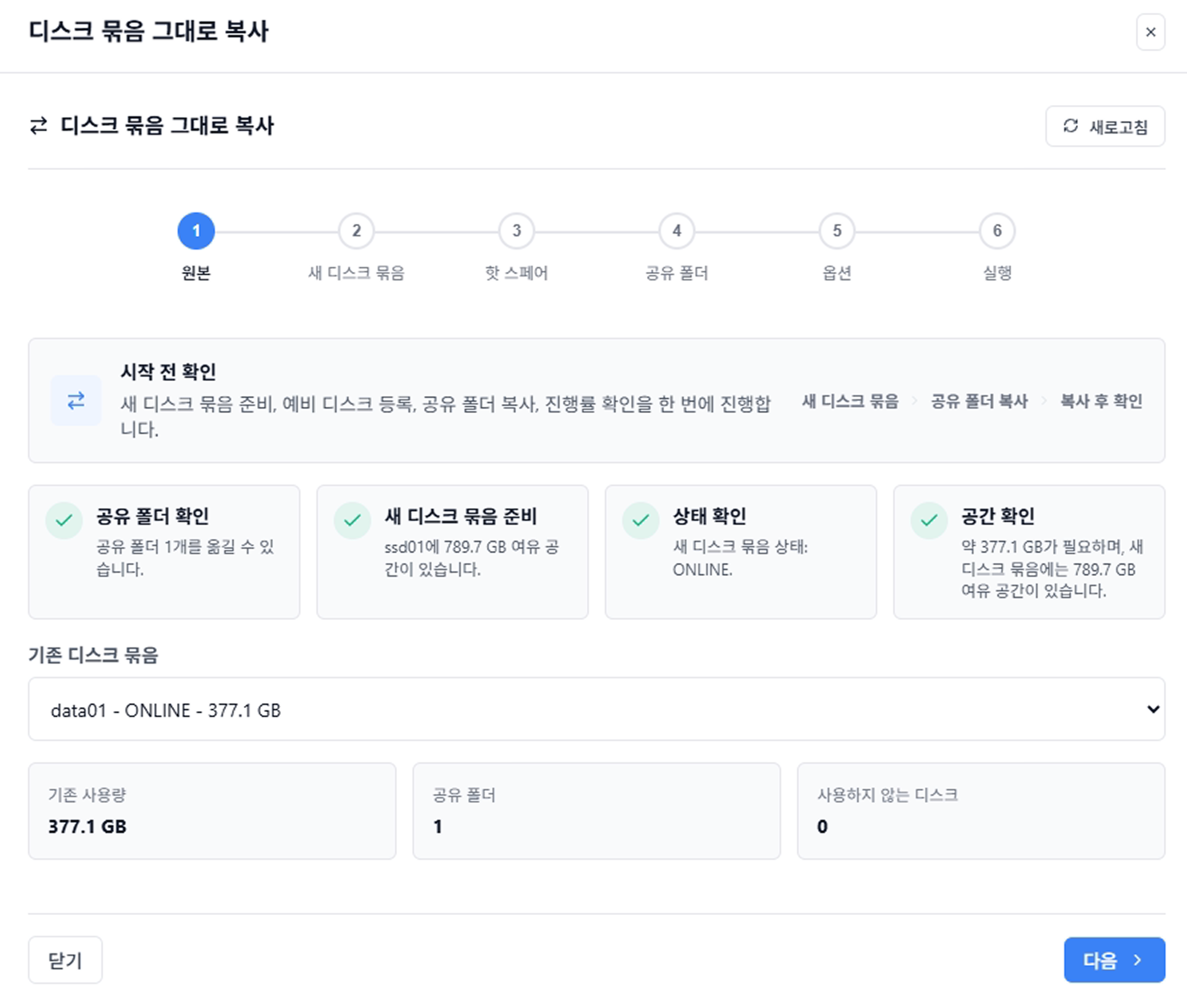
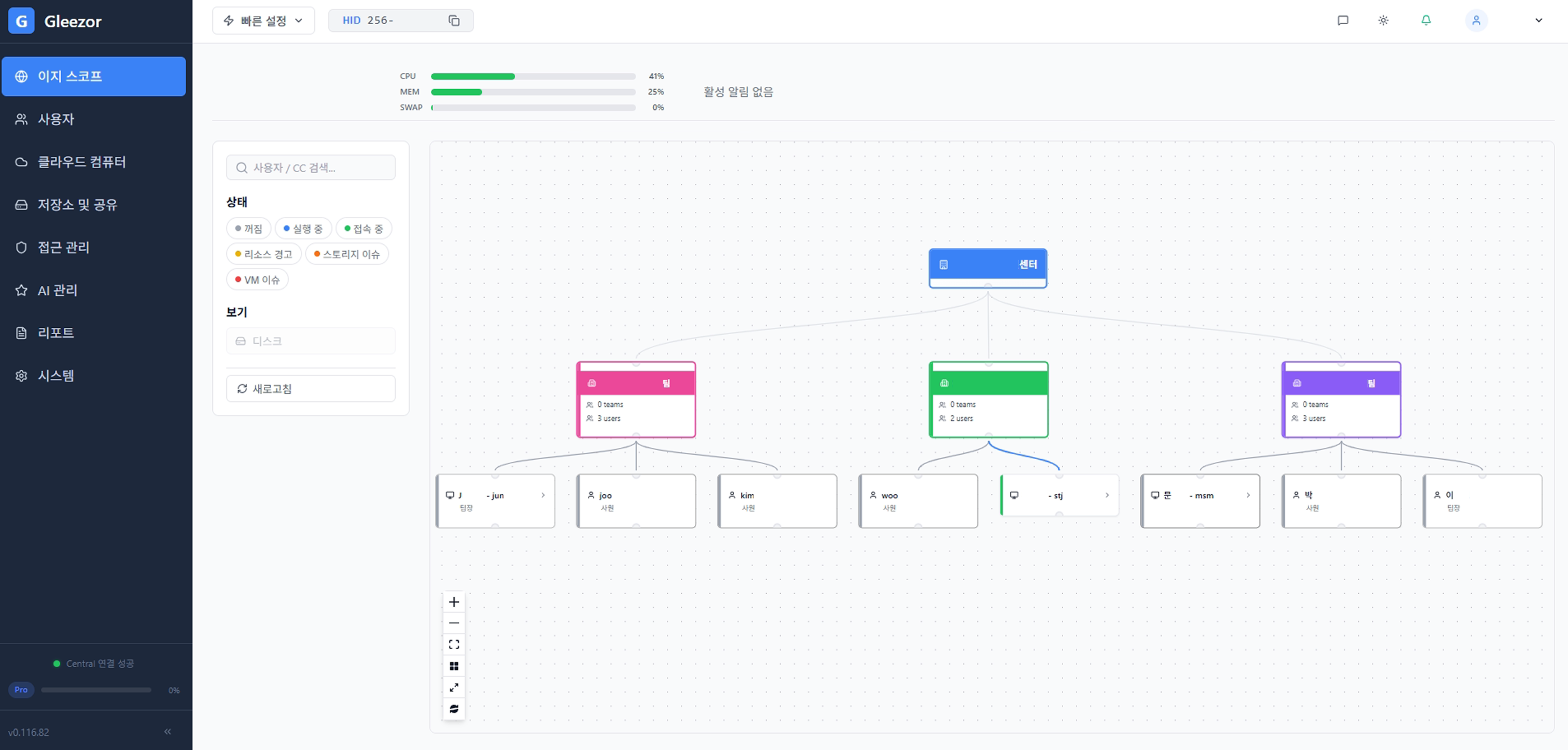
The screens below were captured from a demo Gleezor central computer. Real organization names, people names, and device identifiers are masked.

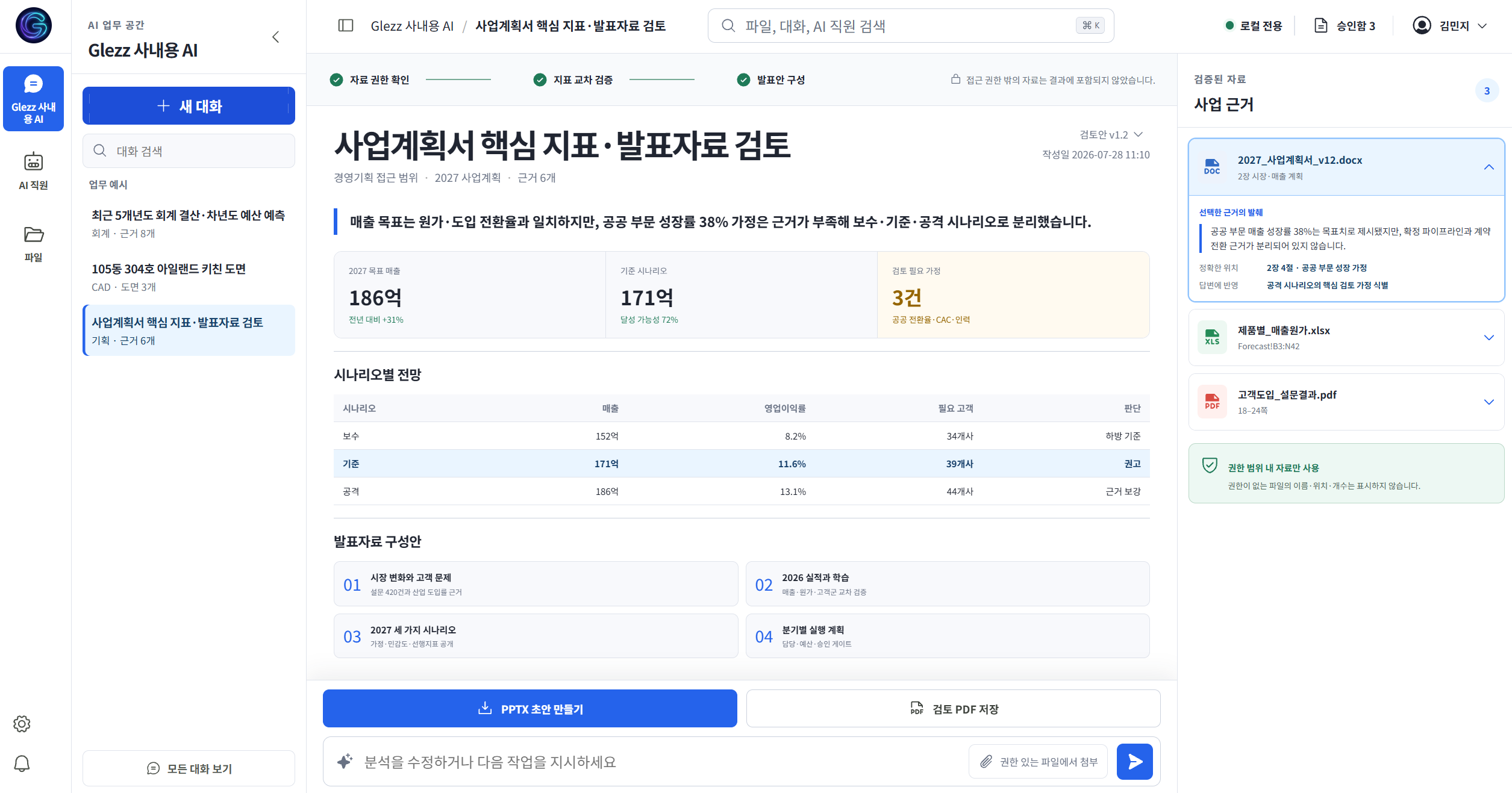
Main Gleezor AI assistant demo screen
Demo screens

How the smart office looks in practice

Each screen focuses on what a manager checks day to day rather than low-level technical settings.

01

AI work assistant

A screen where AI is prepared to draft repeated documents from receipts, reports, and meeting materials. The employee reviews and edits the result.

  • Company-document chatbot
  • Repeated document automation
  • Human final review
AI work assistant demo screen
02

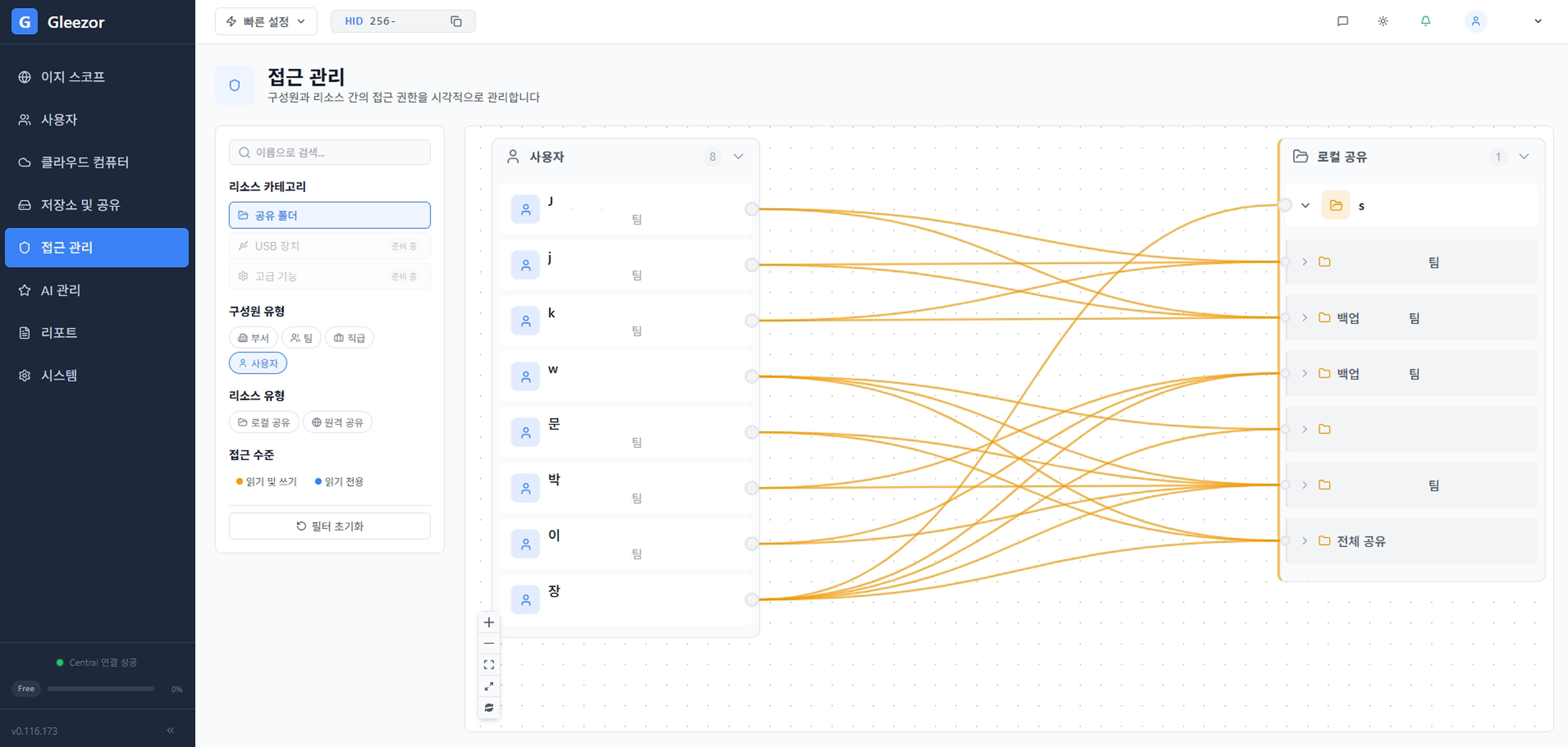
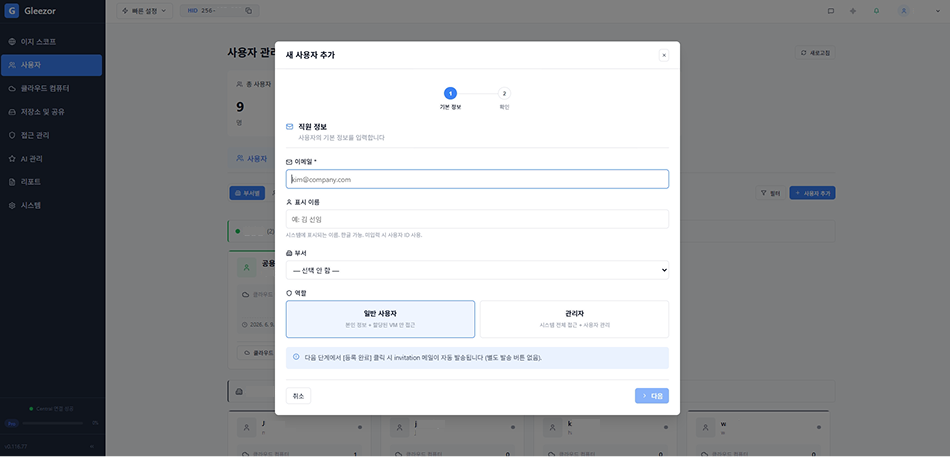
Shared folder access control

A screen that shows who can access each shared folder. Teams can see relationships between people, departments, and folders at a glance.

  • Access by employee
  • Shared folders by department
  • Former employee access checks
Shared folder access demo screen
03

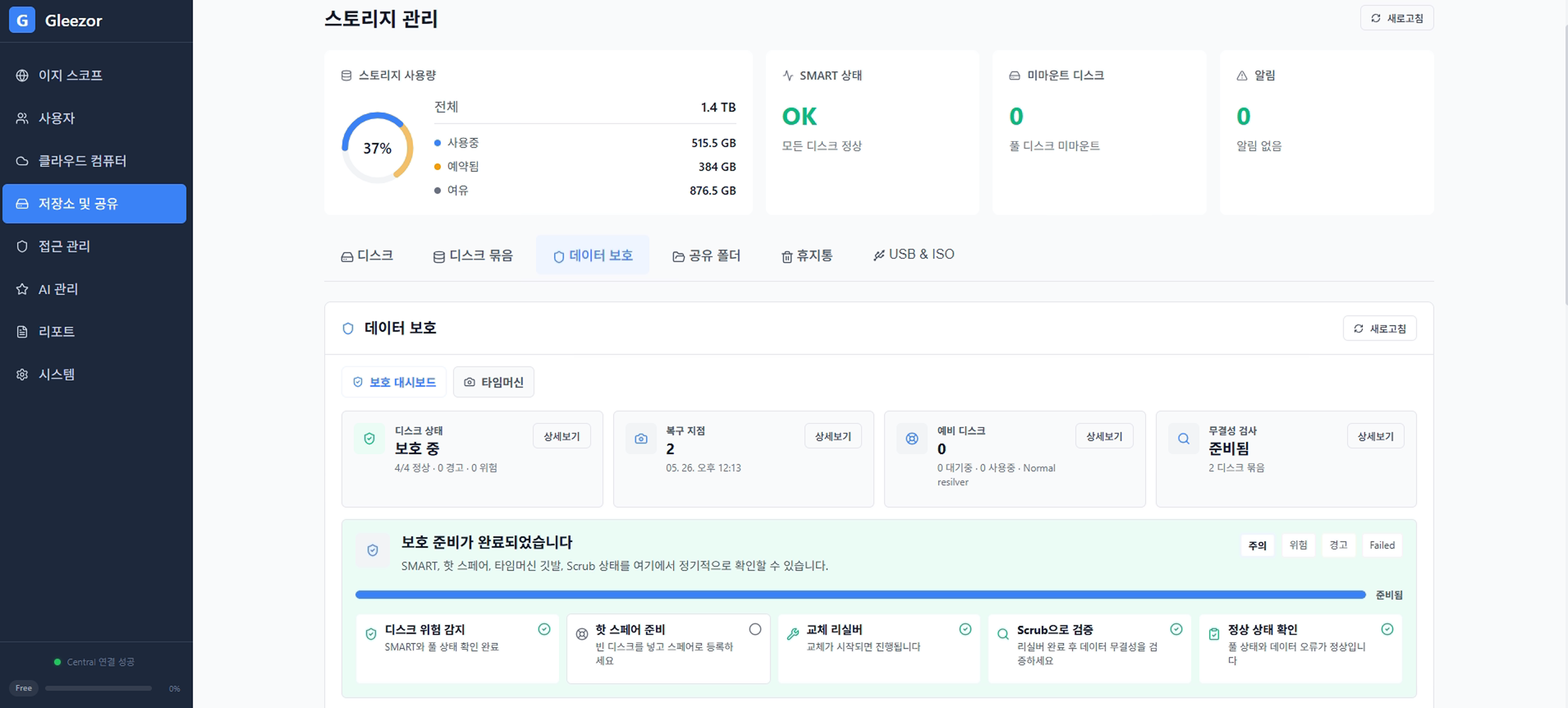
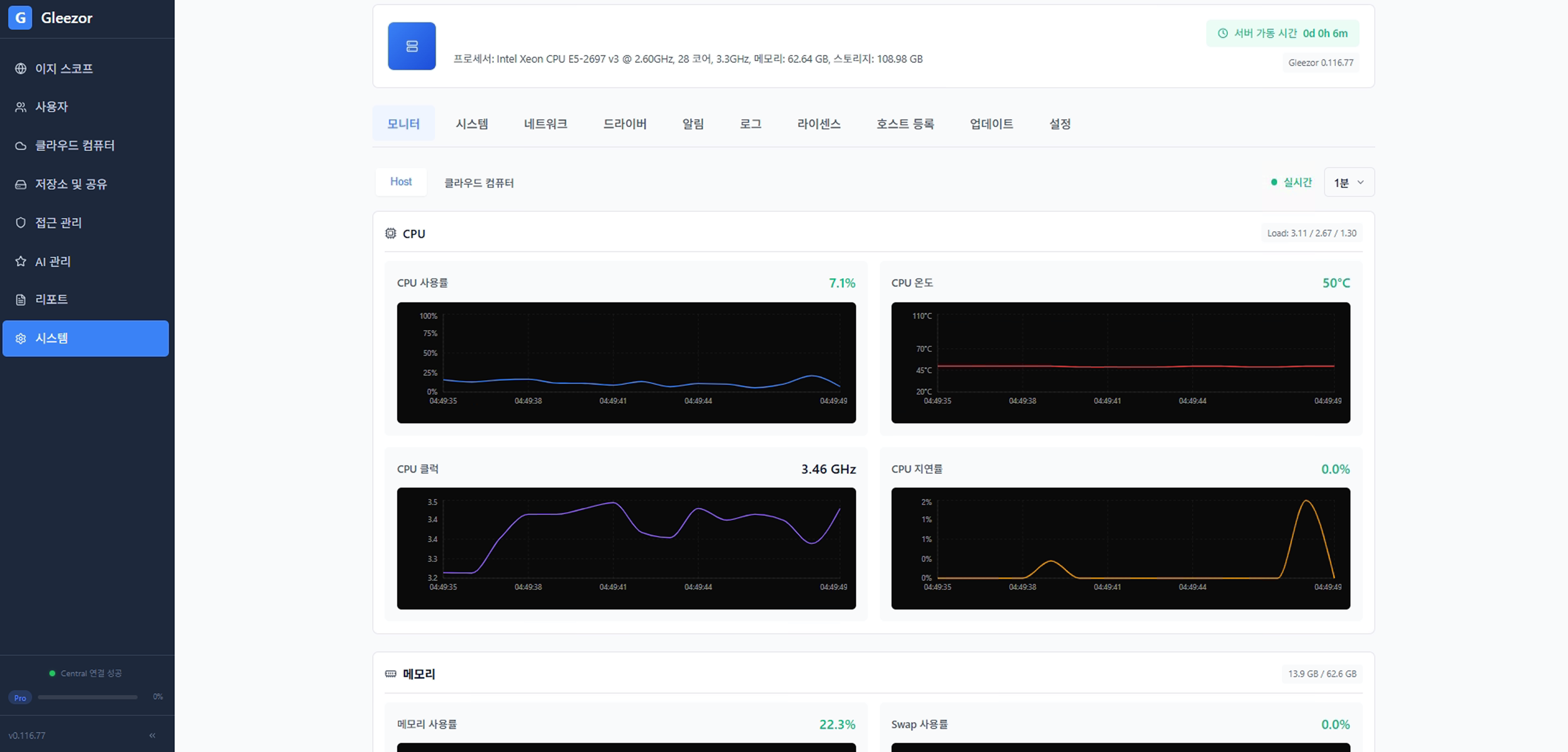
Data location and backup checks

A screen that shows where real folders are connected. It helps teams understand where important documents are and which folders are shared.

  • Data location checks
  • Shared folder status
  • Recovery scope planning
Data location and shared folder demo screen
04

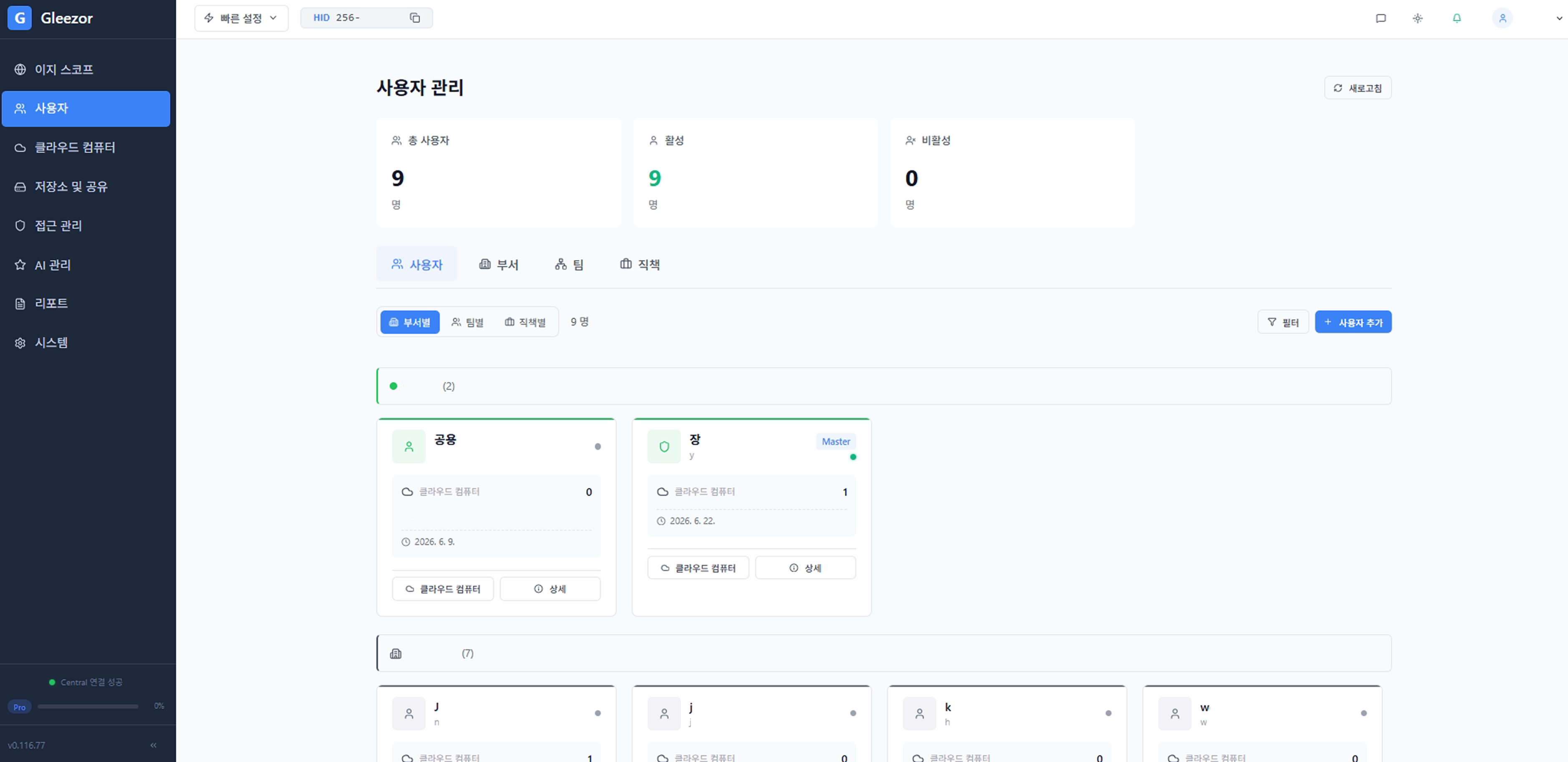
Organization and work screen map

A screen that shows how the company structure, departments, and employee work screens connect.

  • Company structure view
  • Employee work screen links
  • Management rules in one place
Organization and work screen map demo
05

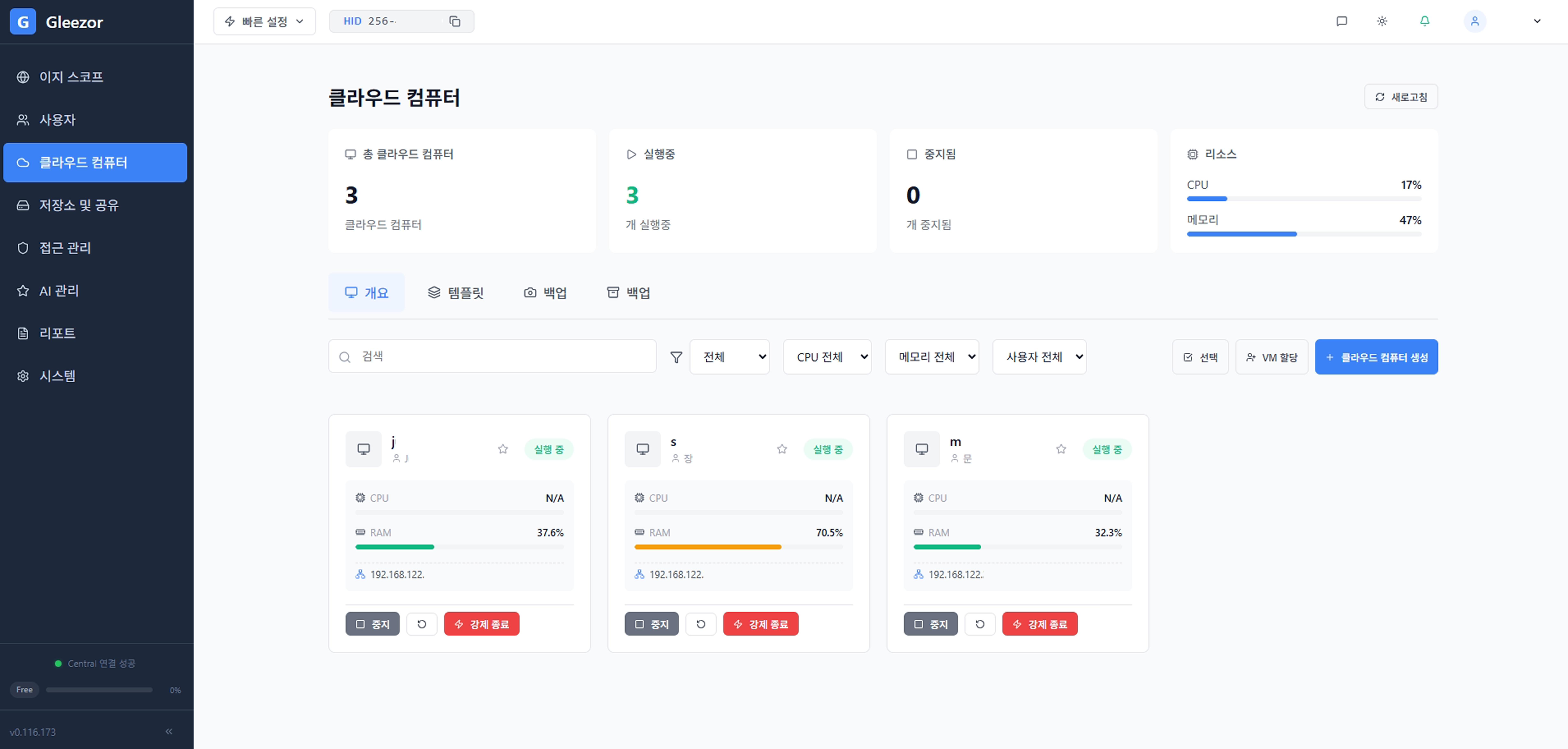
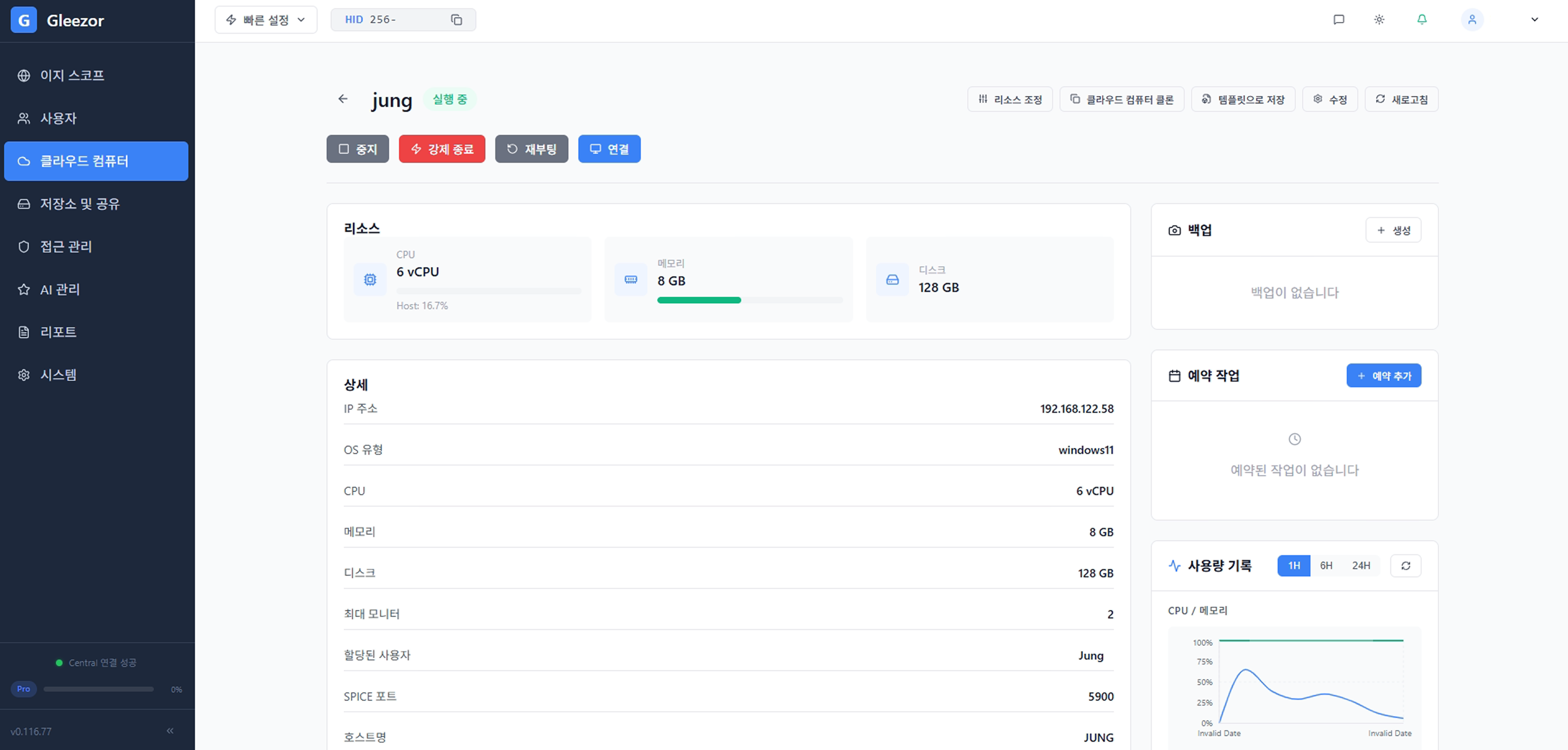
Personal cloud computer placement

A screen for preparing personal cloud computers so employees can open the same work screen outside the office.

  • Work screen per employee
  • Access from home or field
  • Reuse existing PCs for access
Personal cloud computer placement demo