
Manual
Review setup, employee onboarding, remote access, automated backup, and private AI configuration in the same order teams operate them.
Install Server
Install the Gleezor server on dedicated hardware or a VM.
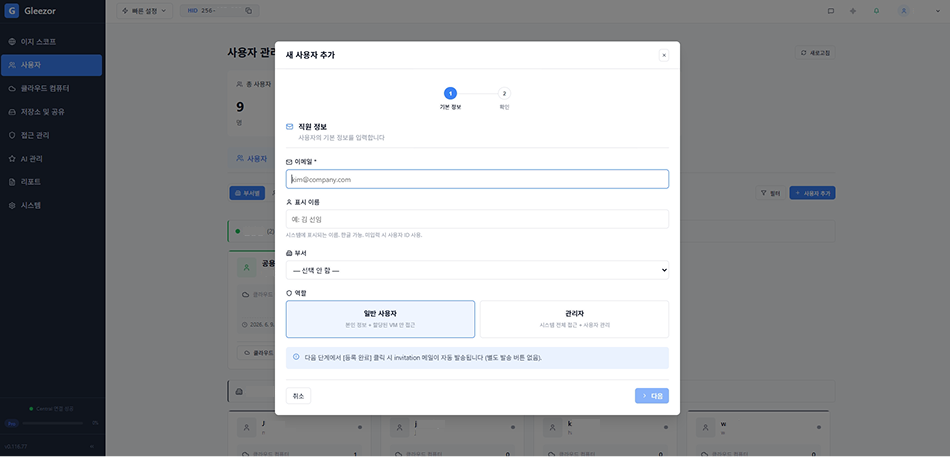
Setup Wizard
Create admin account, configure network, storage, and license in one step.
Add Employees & Departments
Create departments and employee accounts. Access permissions apply automatically.
License Registration
Register your license key and verify activation status.
Create VM Workstation
Create Windows virtual workstations per employee. OS installation is automatic.
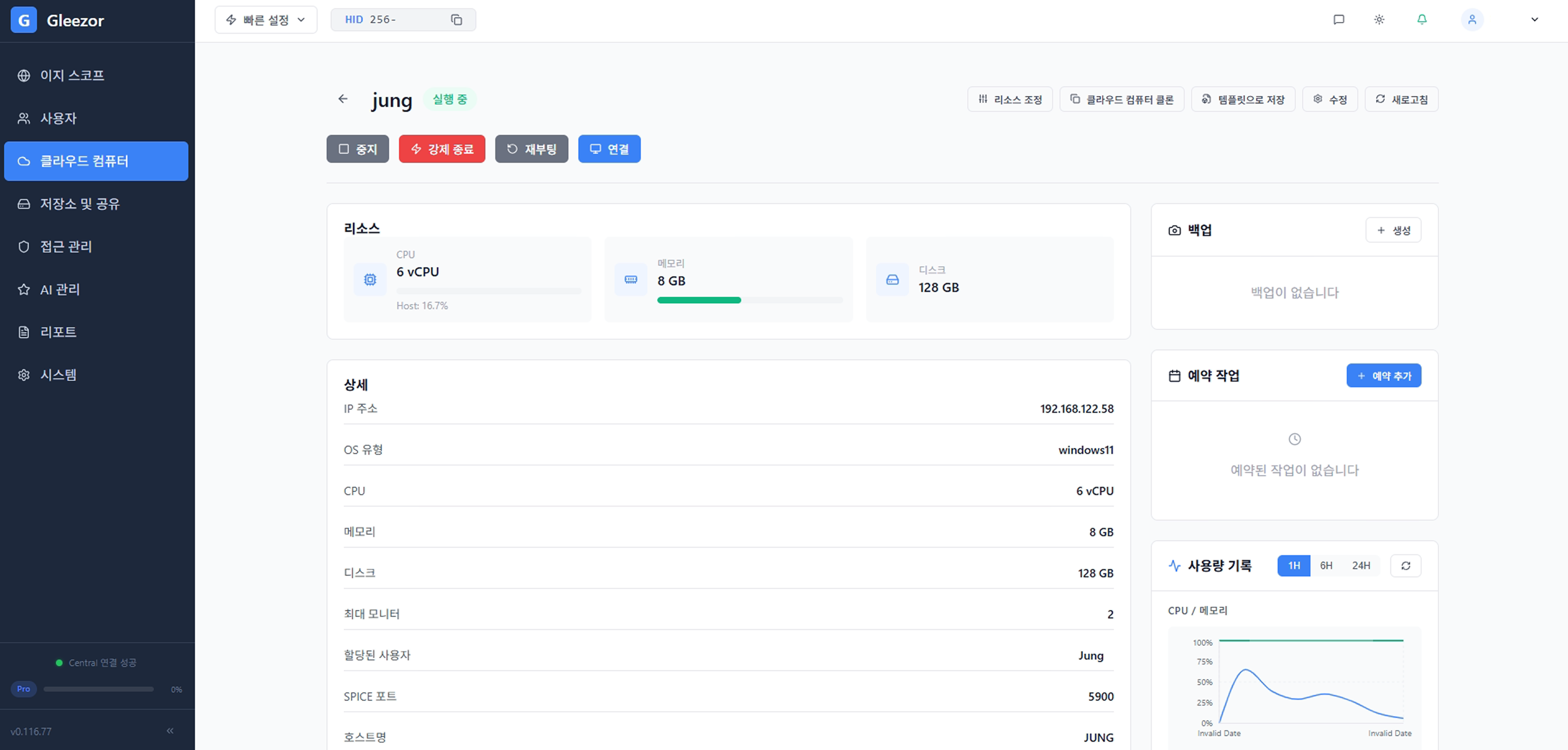
How to Connect Remotely
Connect to your workstation via web browser or dedicated client.
USB & Peripheral Passthrough
Use cameras, microphones, USB drives, etc. on your remote workstation.
Audio & Video Conferencing
Use video conferencing apps on your remote workstation.
Create & Manage Shared Folders
Create and manage shared folders by department or project.
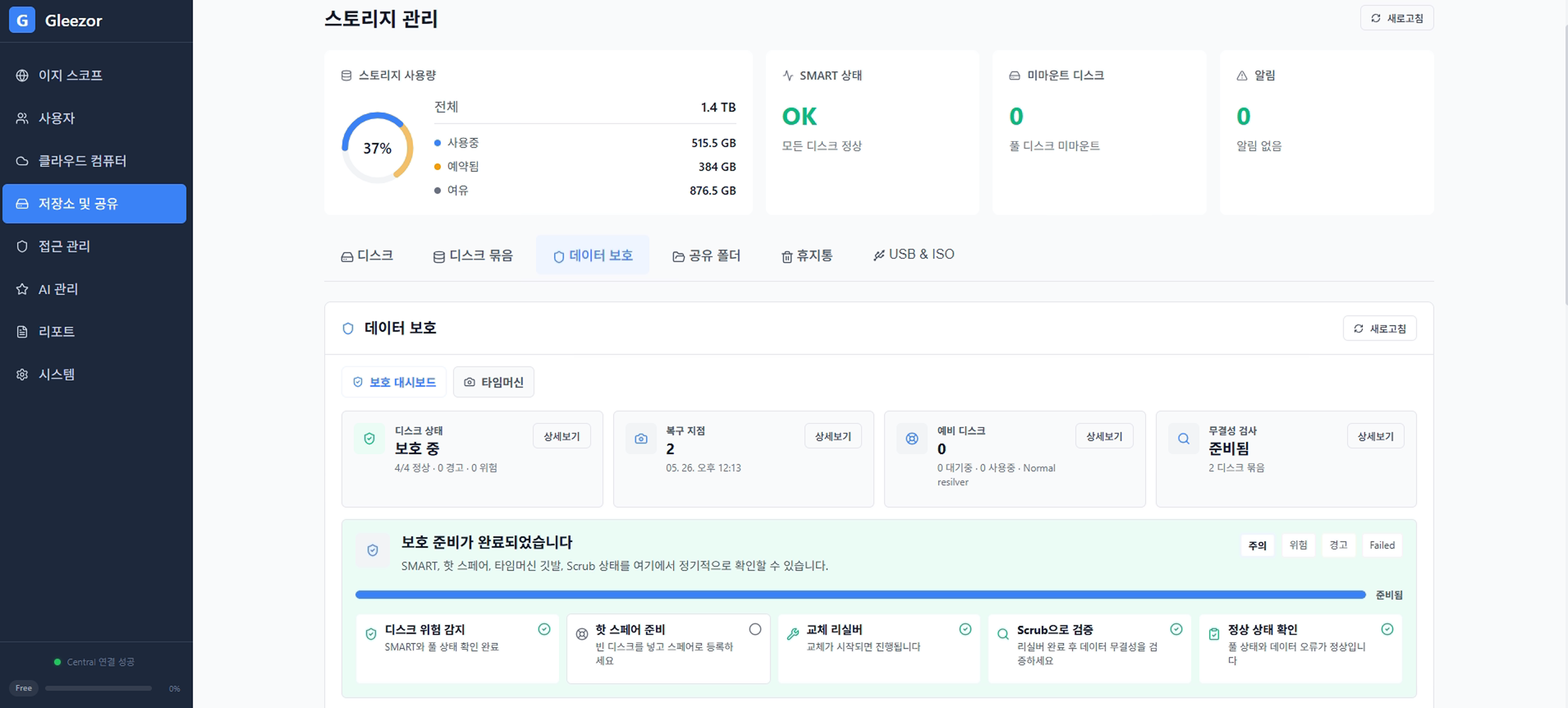
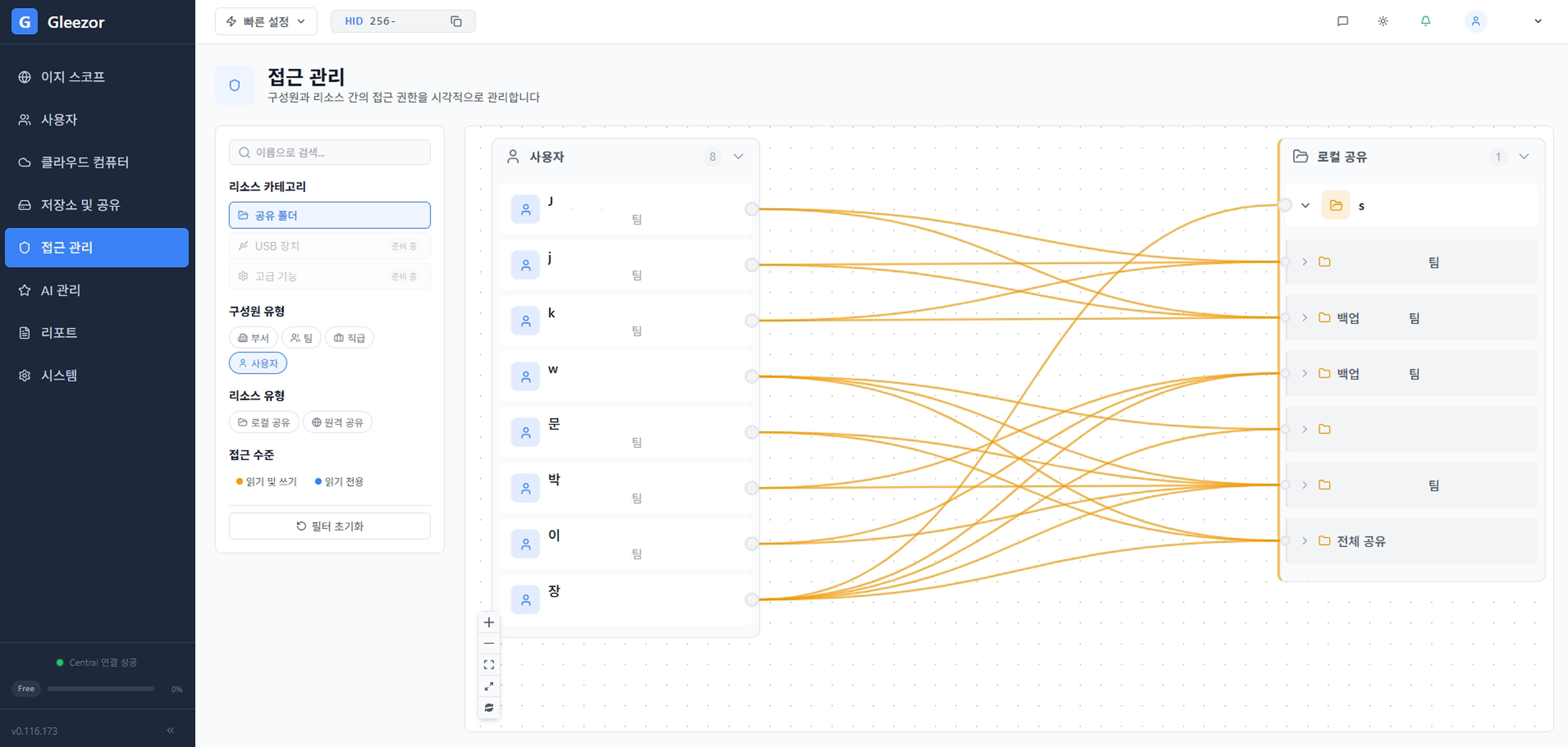
File Access Permissions
Set granular read/write permissions by department or employee.
Backup & Snapshot Configuration
Configure automatic snapshot policies and recover files.
AI Server Setup
Register the AI server and configure on-premises LLM.
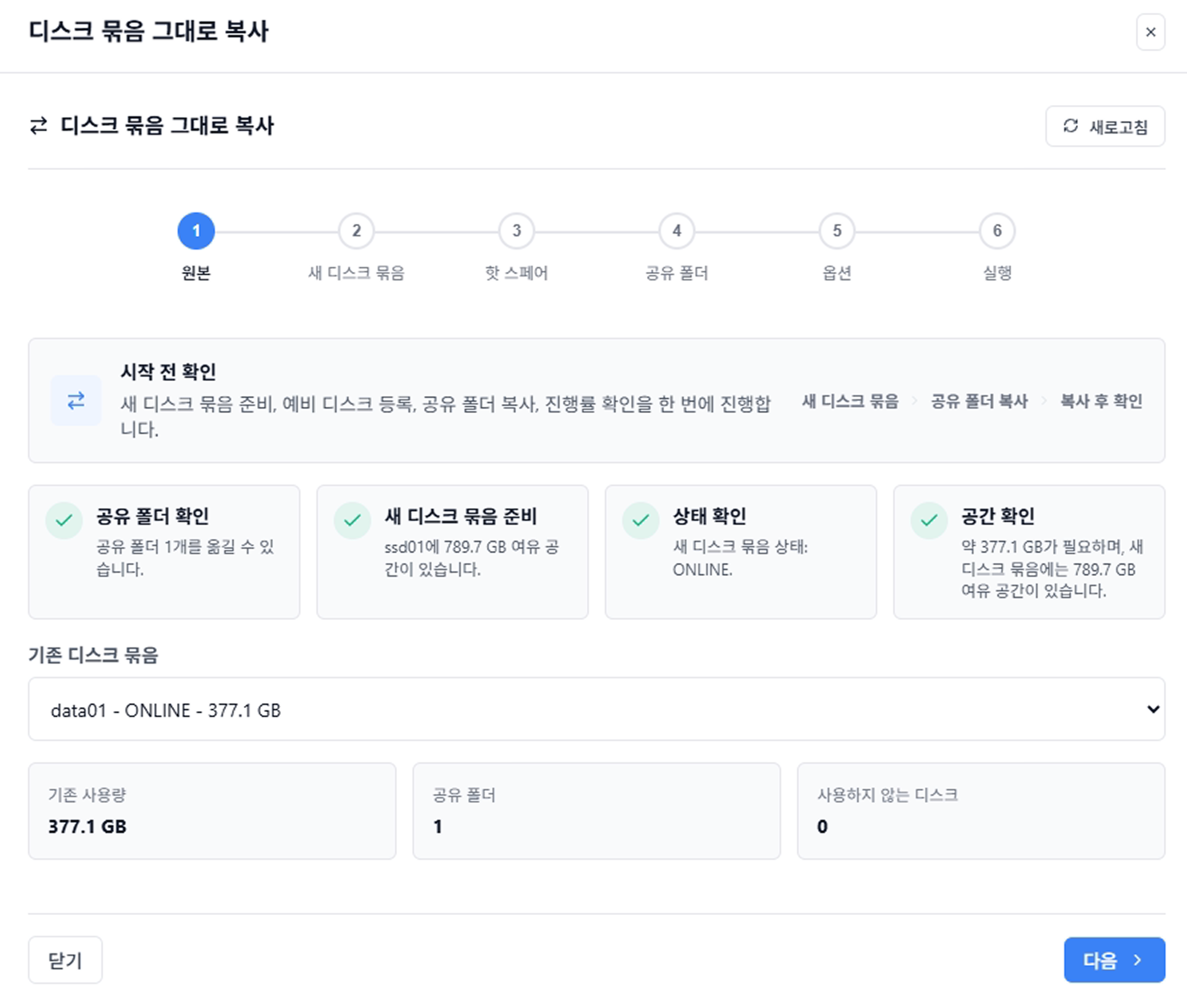
Document Indexing Management
Configure which folders the AI can search.
How to Use AI Assistant
Employees ask questions in natural language and get answers based on company docs.
Access Control & Audit Logs
Department-level access control and audit log review.
Employee Offboarding
Safely revoke access for departing employees.
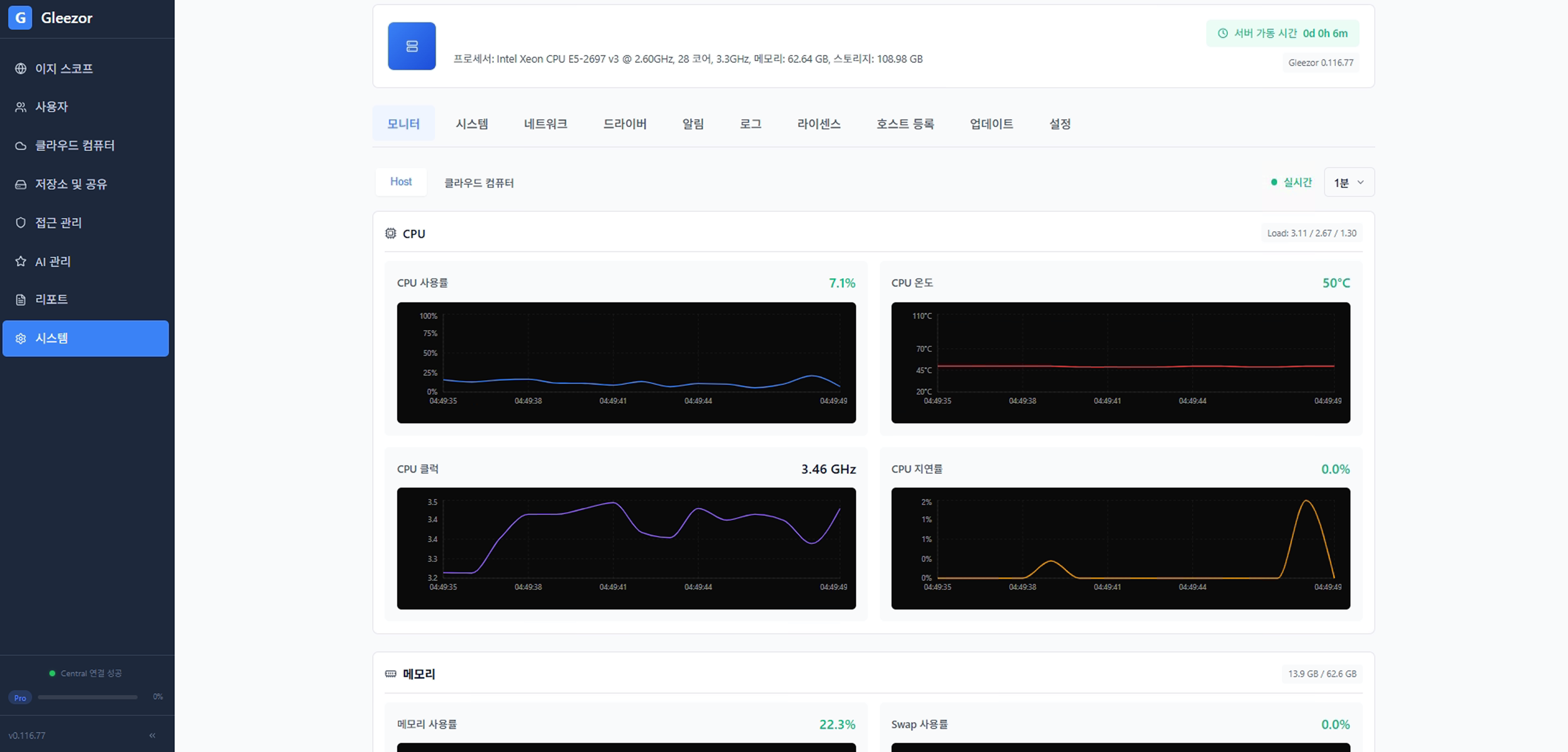
Monitoring & Alert Configuration
Configure server status monitoring and alert rules.
Network Configuration
Configure IP addresses, firewall, port forwarding, etc.
Update Management
Keep your Gleezor server and system up to date.
Central Server Integration
Register hosts with the central management server for remote administration.